Labels

Showing posts with label windows. Show all posts

What is CEF- Cisco Express Forwarding: Load-Balancing with Static Routing


The topology is given below we will be using here :
clip_image001
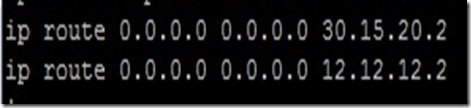
We made loopbacks each on R1& R2 and configure default static-routing with next hop interfaces on R2.
Configuration is like this :
On R1:
clip_image003
Configuring Default-routes on R1:
clip_image004
On R2:
clip_image006
Now we did trace route from R1 to Loopback 2.2.2.2 on R2 :
clip_image007
Take a look … it is sending one packet from 12.12.12.0/24 network and other from
And this is what R1 shows but what’s happening behind the scenes on R2 ?
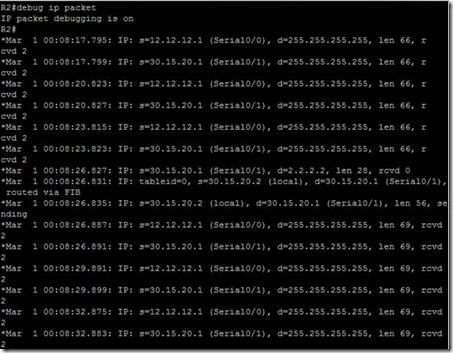
Enabling Debug ip packet on R2 will help to know the sources of packets.
clip_image009
So, this is interesting ….
It shows,
For one packet source is 12.12.12.1 (interface S0/0)
And for another 30.15.20.1 (interface S0/1) and the process take place like this and packets has been sent from each serial interface of R1 alternatively.
But here’s the catch ….
With trace route load-balancing is working fine but when I tried with PING to 2.2.2.2
clip_image010
And as usual #debug ip packets was enabled on R2 . Things are not in favor now L
They are only using same route to send and receive packets.
clip_image012
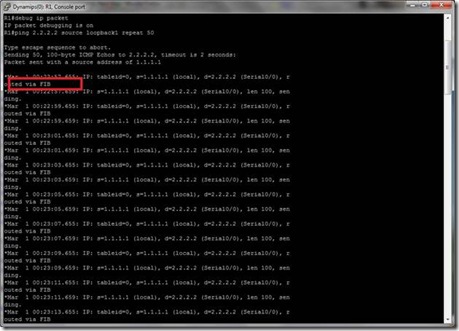
And at the same time on R1
clip_image014
Note: Routed packets via FIB …
I saw it is following only 30.15.20.0/24 network to send packets. No load balancing.
Look at the above picture carefully,
When R1 is sending packet s=30.15.20.1 , d=2.2.2.2, routed through RIB.
And When R2 is sending Acknowledgement reply for this packet when s=2.2.2.2 and d=30.15.20.1, routed via FIB.
Mummble …. Now whats that CEF, FIB, RIB ??
RIB - routing information base
FIB - forwarding information base
CEF- Cisco Express Forwarding
Once CEF is enabled, it will form the FIB table with the help of Routing table. Now router no longer looks on RIB and FIB acts as replacement for RIB.
CEF also generates adjacency table which pre-maps all of the next hop ip as well as MAC address so as we configure Static routing, CEF add routes to FIB (forwarding information base) and send the packets through the interface which is added first into the table and the static route we have configured first will be added first and will be used to send packets .
Since, here 30.15.20.0/24 is stored first as well as configured first for static route so it will be using 30.15.20.0/24
clip_image015
At the same moment and it will not check the routing table when sending packets to another router/network from then on unless there is change in the routing table and will forward all the packets based on CEF table only.
CEF is ON by default on the routers.

Now, try to debug after Disabling CEF on R1
clip_image017
We are successful to load-balance equally from R1-R2 by disabling CEF. J
NOTE: Routed via RIB not FIB i.e. No longer using FIB table created by CEF.
Now, why?? Why ?? traceroute is able to do load-balancing without disabling CEF ?
Better to find out through practical approach
CEF is enable (by default)
Enable #debug ip packet and
Traceroute to 2.2.2.2
clip_image019


Note : sending broad/multicast .

Now, why it was choosing 30.15.20.0/24 not 12.12.12.10/24 network when we are sending packets through PING??
Hope this is informative for you .
Thank you for reading.

How to create CON folder

Not only CON, we cannot create any of these
CON, PRN, AUX, CLOCK$, NUL, COM1, COM2, COM3, COM4, COM5, COM6, COM7, COM8, COM9, LPT1, LPT2, LPT3, LPT4, LPT5, LPT6, LPT7, LPT8, LPT9 and more

The reason is that con, prn, lpt1..lpt9, etc are underlying devices from the time dos was written. so if u r allowed to create such folders, there will be an ambiguity in where to write data when the data is supposed to go to the specified devices. In other words, if i want to print something, internally what windows does is -- it will write the data to the folder prn (virtually u can call it a folder, i mean prn, con, etc are virtual folders in device level). So if we are able to create con folder, windows will get confused where to write the data, to virtual con folder or real one.

So Now, Try this...

Open the Command prompt by Start -> Run and typing cmd


Code:
C:\> md \\.\c:\con
Now, Open My Computer and browse through the path where you created CON folder... Surprising.. ?? Yeah.. you have created it successfully

Now, try to delete the folder from My computer

OOPS!!! You cant delete it...

Now, try this in command prompt console

Code:
C:\> rd \\.\c:\con
Yeah!! You did it...


This hack has no restrictions , using this hack you can hack each and every computer.

First of all Download the ERD(Emergency Rescue Disk)  commander... Extract the Files and Make a CD...

STEPS INVOLVED :

1. Insert the ERD Commander Boot CD into the drive and restart the system
2. Boot the computer using ERD Commander Boot CD. You may have to set the boot order in the BIOS first.
3. Select your Windows XP installation from the list as shown.


4. From the ERD Commander menu (Start menu), click System Tools and click Locksmith

5. Click Next


6. Select the administrator account from the list for which you want to reset the password.


7. Type the new password in both the boxes, click Next and click Finish


8 . Restart The System and take the CD out of the Drive..And Enjoy Admin account...

Enjoy..!!!!

DOWNLOAD ERD COMMANDER
Download Link  http://adf.ly/3b1vA

HOW TO CREATE A WINDOWS FOLDER NAMED ''CON''

According to the fictious messages tha have been circulating through the internet that it is not possible to create a folder named "CON" on a Microsoft Windows based computer. Not Only CON, the same happens with.. PRN, AUX, CLOCK$, NUL, COM1, COM2, COM3, COM4, COM5, COM6, COM7, COM8, COM9, LPT1, LPT2, LPT3, LPT4, LPT5, LPT6, LPT7, LPT8, LPT9 and more..

The message claims that not even Bill Gates or the whole Microsoft "Team" can explain why this is be so.
Well,. this message is partially true,
  • Yess you cannot create a CON folder using the ordinary way of creating a folder,.. i.e right click desktop=> New=> Folder.........blah blah blah.. error! :P .........its not going to work..
The reason is that con, prn, lpt1..com1 e.t.c, are underlying devices from the time dos was written. therefore if you are allowed to create such folders, there will be an ambiguity in where to write data when the data is supposed to go to the specified devices. In other words, if i want to print something, internally what windows does is -- it will write the data to the folder prn (virtually u can call it a folder, i mean prn, con, etc are virtual folders in device level). So if we are able to create con folder, windows will get confused or rather give an error on where to write the data, to virtual con folder or real one 
  • The other fact is that yes!!! it is 100% possible, you can create a folder named CON on windows based computers

HOW TO CTEATE IT?

Open the Command prompt by Start -> Run and typing cmd

Code:
C:\> md \\.\c:\con

Now, Open My Computer and browse through the path where you created CON folder... successful!!! You will see the folder you have right in drive C

Now, try to delete the folder from My computer
Error!!! You cant delete it using the ordinary way too :P

Now, try this in command prompt console to delete it

Code:
C:\> rd \\.\c:\con

Press enter and congratulations.. you have deleted it  :D

How to Recover Your Master Password

Reset Master Password


Have you lost your master password?
If you want to add another layer of protection to your Firefox browser, you can turn on the master password option.  In short, this will allow you to secure your login information – especially if your PC is used by more than one person, so they can’t snoop through Firefox’s options and find your passwords.
Now if you find yourself not remembering your master password, there is an easy way to reset it.  There is a down side though, because resetting your master password will remove all of your saved user names and passwords. To start the process, copy and paste this location into your Firefox address bar:
chrome://pippki/content/resetpassword.xul
This is your “Reset Master Password” page.  For one more time, it warns you:
If you reset your master password, all your stored web and e-mail password, form data, personal certificates, and private keys will be forgotten. Are you sure you want to reset your master password?
Then you will be given the option to “Reset” or “Cancel”.  Hit the button labled “Reset” and your master password should be reset.

HOW TO EXTRACT ALL USERNAMES & PASSWORDS STORED IN MOZILLA FIREFOX

PasswordFox - small password recovery tool that allows a user to view the usernames and passwords stored under Mozilla Firefox Web browser. By default, PasswordFox displays the passwords stored in your current profile, but you can easily select to watch the passwords of any other Firefox profile. For each password entry, the following information is displayed: Record Index, Web Site, User Name, Password, User Name Field, Password Field, and the Signons filename.
PasswordFox works on every platform of microsoft wondows - Windows 2000, Windows XP, Windows Server 2003, Windows Vista, and Windows 7

How to Use PasswordFox

First, download passwordFox : http://www.nirsoft.net/utils/passwordfox.zip
  • Extract the rar file
  • Double click on Password Fox
  • Within a matter of second the software will scan all the saved password in Mozilla Firefox
  • If you want to save all password
  • Click on EDIT->SELECT ALL-> FILE->SAVE AS->Type the filename and select the type of extension and Click on SAVE.


NOTE: Such tools might be detected by your Antivirus Software not because they have a virus/Trojan, but because they are simply Hacking tools. Therefore it'll be nothing but a false positive detection.

Enjoy: D

WINDOWS XP HIDDEN APPS very helpful

1) Character Map = charmap.exe (very useful for finding unusual characters)

2) Disk Cleanup = cleanmgr.exe

3) Clipboard Viewer = clipbrd.exe (views contents of Windows clipboard)

4) Dr Watson = drwtsn32.exe (Troubleshooting tool)

5) DirectX diagnosis = dxdiag.exe (Diagnose & test DirectX, video & sound cards)

6) Private character editor = eudcedit.exe (allows creation or modification of characters)

7) IExpress Wizard = iexpress.exe (Create self-extracting / self-installing package)

8) m*cro$oft Synchronization Manager = mobsync.exe (appears to allow synchronization of files on the network for when working offline. Apparently undocumented).

9) Windows Media Player 5.1 = mplay32.exe (Retro version of Media Player, very basic).

10) ODBC Data Source Administrator = odbcad32.exe (something to do with databases)

11) Object Packager = packager.exe (to do with packaging objects for insertion in files, appears to have comprehensive help files).

12) System Monitor = perfmon.exe (very useful, highly configurable tool, tells you everything you ever wanted to know about any aspect of PC performance, for uber-geeks only )

13) Program Manager = progman.exe (Legacy Windows 3.x desktop shell).

14) Remote Access phone book = rasphone.exe (documentation is virtually non-existant).

15) Registry Editor = regedt32.exe [also regedit.exe] (for hacking the Windows Registry).

16) Network shared folder wizard = shrpubw.exe (creates shared folders on network).

17) File siganture verification tool = sigverif.exe

18) Volume Control = sndvol32.exe (I've included this for those people that lose it from the System Notification area).

19) System Configuration Editor = sysedit.exe (modify System.ini & Win.ini just like in Win98! ).

20) Syskey = syskey.exe (Secures XP Account database - use with care, it's virtually undocumented but it appears to encrypt all passwords, I'm not sure of the full implications).

21) m*cro$oft Telnet Client = telnet.exe

22) Driver Verifier Manager = verifier.exe (seems to be a utility for monitoring the actions of drivers, might be useful for people having driver problems. Undocumented).

23) Windows for Workgroups Chat = winchat.exe (appears to be an old NT utility to allow chat sessions over a LAN, help files available).

24) System configuration = msconfig.exe (can use to control starup programs)

25) gpedit.msc used to manage group policies, and permissions

Win Xp Hidden Secrets

Defrag

Secret - Hidden Command Line Switch
Instructions - Go to "Start", "Run" and Type defrag c: -b to defragment the Boot and Application Prefetch information. Similar to what BootVis invokes.

Paint

Secret - Image Trails
Instructions - Open an image and hold down Shift then drag the image around to create an image trail.

Secret - 10x Zoom
Instructions - Open an image and select the magnifying glass icon. Left-Click exactly on the line below the 8x.


Game Secrets


FreeCell

Secret - Instant Win
Instructions - Hold down Ctrl + Shift + F10 during game play. Then you will be asked if you want to Abort, Retry or Ignore. Choose Abort, then move any card to instantly win.

Secret - Hidden Game Modes
Instructions - In the "Game" menu choose "Select Game". Enter -1 or -2 to activate the hidden game modes.

Minesweeper

Secret - Reveal Mines
Instructions - Minimize or close all running applications. Launch Minesweeper, then type xyzzy. Next hold down either shift key for one second. Now when you move the mouse cursor over a Minesweeper square you will see a tiny white pixel in the top left corner of your desktop screen. This pixel will change to black when your mouse moves over a mine. You may need to change you desktop background to a solid color other then white or black to see the pixel.

Pinball

Secret - Extra Balls
Instructions - Type 1max at the start of a new ball to get extra balls.

Secret - Gravity Well
Instructions - Type gmax at the start of a new game to activate the Gravity Well.

Secret - Instant Promotion
Instructions - Type rmax at the start of a new game to go up in ranks.

Secret - Skill Shot
Instructions - Launch the ball partially up the chute past the third yellow light bar so it falls back down to get 75,000 points. There are six yellow light bars that are worth a varying amount of points:

First: 15,000 points
Second: 30,000 points
Third: 75,000 points
Fourth: 30,000 points
Fifth: 15,000 points
Sixth: 7,500 points

Secret - Test Mode
Instructions - Type hidden test at the start of a new ball to activate Test Mode. No notification will be given that this is activated but you can now left-click the mouse button and drag the ball around.

Secret - Unlimited Balls
Instructions - Type bmax at the start of a new ball. No notification will be given that this is activated but when a ball is lost a new ball will appear from the yellow wormhole indefinitely. Once this is activated you will be unable to activate other secrets without restarting the game.

Solitaire

Secret - Instant Win
Instructions - Press Alt + Shift + 2 during game play to instantly win.

Secret - Draw single cards in a Draw Three game
Instructions - Hold down CTRL + ALT + SHIFT while drawing a new card. Instead of drawing three cards you will only draw one.


OS Secrets


Add/Remove

Secret - Hidden Uninstall Options
Instructions - Warning: Proceed at your own risk! Browse to C:\Windows\inf\ and make a backup copy of sysoc.inf. Then open the original file C:\Windows\inf\sysoc.inf in notepad. Go to "Edit" and select "Replace". In "Find what:" type ,hide and in "Replace with:" type , then select "Replace All", save and close the file. Go to the control panel, "Add/Remove", select "Add/Remove Windows Components". You will now see many more Windows components to uninstall. Do not remove anything with no label or that you do not recognize or fully understand what it does. Doing so can break certain functionality in Windows.

Control Panel

Secret - Hidden Control Panel Extensions
Instructions - Download and install TweakUI, launch, go to "Control Panel" and check any item not selected, then "Apply" and "OK". You will now see the hidden control panel extensions.

Device Manager

Secret - Hidden Devices
Instructions - Go to the control panel, "System" icon, "Hardware" tab and select "Device Manager". Select View and Show hidden devices.

Music

Secret - Music from the Installer
Instructions - Browse to C:\Windows\system32\oobe\images\title.wma and play.

Shutdown

Secret - Display Hibernate Option on the Shut Down dialog
Instructions - Go to "Start", "Turn Off Computer..." and press either Shift key to change the "Stand By" button to "Hibernate".

Support Tools

Secret - Over 100 Windows XP Support Utilities are on the install CD

Instructions for Pre-SP2 users - If you do not have SP2 installed, put the original Windows XP CD in the CD-ROM Drive, run the D:\Support\Tools\setup.exe file.

Ms-dos Commands

Command Prompt
-------------------------------------------------------------------
ANSI.SYS - Defines functions that change display graphics, control cursor movement, and reassign keys.
APPEND - Causes MS-DOS to look in other directories when editing a file or running a command.
ARP - Displays, adds, and removes arp information from network devices.
ASSIGN - Assign a drive letter to an alternate letter.
ASSOC - View the file associations.
AT - Schedule a time to execute commands or programs.
ATMADM - Lists connections and addresses seen by Windows ATM call manager.
ATTRIB - Display and change file attributes.

BATCH - Recovery console command that executes a series of commands in a file.
BACKUP - Enables users to backup their data on their computer.
BOOTCFG - Recovery console command that allows a user to view, modify, and rebuild the boot.ini
BREAK - Enable / disable CTRL + C feature.

CACLS - View and modify file ACL's.
CALL - Calls a batch file from another batch file.
CD - Changes directories.
CHCP - Supplement the International keyboard and character set information.
CHDIR - Changes directories.
CHKDSK - Check the hard disk drive running FAT for errors.
CHKNTFS - Check the hard disk drive running NTFS for errors.
CHOICE - Specify a listing of multiple options within a batch file.
CLS - Clears the screen.
CMD - Opens the command interpreter.
COLOR - Easily change the foreground and background color of the MS-DOS window.
COMMAND - Opens the command interpreter.
COMP - Compares files.
COMPACT - Compresses and uncompress files.
CONTROL - Open control panel icons from the MS-DOS prompt.
CONVERT - Convert FAT to NTFS.
COPY - Copy one or more files to an alternate location.
CTTY - Change the computers input/output devices.

DATE - View or change the systems date.
DEBUG - Debug utility to create assembly programs to modify hardware settings.
DEFRAG - Re-arrange the hard disk drive to help with loading programs.
DEL - Deletes one or more files.
DELETE - Recovery console command that deletes a file.
DELTREE - Deletes one or more files and/or directories.
DIR - List the contents of one or more directory.
DISABLE - Recovery console command that disables Windows system services or drivers.
DISKCOMP - Compare a disk with another disk.
DISKPART - used to delete and create partitions.
DISKCOPY - Copy the contents of one disk and place them on another disk.
DOSKEY - Command to view and execute commands that have been run in the past.
DOSSHELL - A GUI to help with early MS-DOS users.
DRIVPARM - Enables overwrite of original device drivers.

ECHO - Displays messages and enables and disables echo.
EDIT - View and edit files.
EDLIN - View and edit files.
EMM386 - Load extended Memory Manager.
ENABLE - Recovery console command to enable a disable service or driver.
ENDLOCAL - Stops the localization of the environment changes enabled by the setlocal command.
ERASE - Erase files from computer.
EXIT - Exit from the command interpreter.
EXPAND - Expand a M*cro$oft Windows file back to it's original format.
EXTRACT - Extract files from the M*cro$oft Windows cabinets.

FASTHELP - Displays a listing of MS-DOS commands and information about them.
FC - Compare files.
FDISK - Utility used to create partitions on the hard disk drive.
FIND - Search for text within a file.
FINDSTR - Searches for a string of text within a file.
FIXBOOT - Writes a new boot sector.
FIXMBR - Writes a new boot record to a disk drive.
FOR - Boolean used in batch files.
FORMAT - Command to erase and prepare a disk drive.
FTP - Command to connect and operate on a FTP server.
FTYPE - Displays or modifies file types used in file extension associations.

GOTO - Movesa batch file to a specific label or location.
GRAFTABL - Show extended characters in graphics mode.

HELP - Display a listing of commands and brief explanation.
HOSTNAME -Display the hostname of the machine.

IF - Allows for batch files to perform conditional processing.
IFSHLP.SYS - 32-bit file manager.
IPCONFIG - Network command to view network adapter settings and assigned values.

KEYB - Change layout of keyboard.

LABEL - Change the label of a disk drive.
LH - Load a device driver in to high memory.
LISTSVC - Recovery console command that displays the services and drivers.
LOADFIX - Load a program above the first 64k.
LOADHIGH - Load a device driver in to high memory.
LOCK - Lock the hard disk drive.
LOGON - Recovery console command to list installations and enable administrator login.

MAP - Displays the device name of a drive.
MD - Command to create a new directory.
MEM - Display memory on system.
MKDIR - Command to create a new directory.
MODE - Modify the port or display settings.
MORE - Display one page at a time.
MOVE - Move one or more files from one directory to another directory.
MSAV - Early M*cro$oft Virus scanner.
MSBACKUP -MS-DOS application that enables users to backup their data on their computer.
MSD - Diagnostics utility.
MSCDEX - Utility used to load and provide access to the CD-ROM.
MWBACKUP - MS-DOS application that enables users to backup their data on their computer.

NBTSTAT - Displays protocol statistics and current TCP/IP connections using NBT
NET - Update, fix, or view the network or network settings
NETSH - Configure dynamic and static network information from MS-DOS.
NETSTAT - Display the TCP/IP network protocol statistics and information.
NLSFUNC - Load country specific information.
NSLOOKUP - Look up an IP address of a domain or host on a network.

PATH - View and modify the computers path location.
PATHPING - View and locate locations of network latency.
PAUSE - Command used in batch files to stop the processing of a command.
PING - Test / send information to another network computer or network device.
POPD - Changes to the directory or network path stored by the pushd command.
POWER - Conserve power with computer portables.
PRINT - Prints data to a printer port.
PROMPT - View and change the MS-DOS prompt.
PUSHD - Stores a directory or network path in memory so it can be returned to at any time.

QBASIC - Open the QBasic.

RD - Removes an empty directory.
REN - Renames a file or directory.
RENAME - Renames a file or directory.
RMDIR - Removes an empty directory.
ROUTE - View and configure windows network route tables.
RUNAS - Enables a user to execute a program on another computer.

SCANDISK - Run the scandisk utility.
SCANREG - Scan registry and recover registry from errors.
SET - Change one variable or string to another.
SETLOCAL - Enables local environments to be changed without affecting anything else.
SETVER - Change MS-DOS version to trick older MS-DOS programs.
SFC - Scans and replaces any M*cro$oft Windows file on the computer and replaces any changed file with the correct version
SHARE - Installs support for file sharing and locking capabilities.
SHIFT - Changes the position of replaceable parameters in a batch program.
SHUTDOWN - Shutdown the computer from the MS-DOS prompt.
SMARTDRV - Create a disk cache in conventional memory or extended memory.
SORT - Sorts the input and displays the output to the screen.
START - Start a separate window in Windows from the MS-DOS prompt.
SUBST - Substitute a folder on your computer for another drive letter.
SWITCHES - Remove add functions from MS-DOS.
SYS - Transfer system files to disk drive.
SYSTEMINFO - Displays complete system information for M*cro$oft Windows XP Professional computers.
SYSTEMROOT - The systemroot command is a recovery console command that sets the current directory as the system root directory.

TELNET - Telnet to another computer / device from the prompt.
TIME - View or modify the system time.
TITLE - Change the title of their MS-DOS window.
TRACERT - Visually view a network packets route across a network.
TREE - View a visual tree of the hard disk drive.
TYPE - Display the contents of a file.

UNDELETE - Undelete a file that has been deleted.
UNFORMAT - Unformat a hard disk drive.
UNLOCK - Unlock a disk drive.

VER Display - the version information.
VERIFY - Enables or disables the feature to determine if files have been written properly.
VOL - Displays the volume information about the designated drive.

XCOPY - Copy multiple files, directories, and/or drives from one location to another.

ASCII control characters

The following ASCII table contains both ASCII control characters, ASCII printable characters and the extended ASCII character set ISO 8859-1, also called ISO Latin1


ASCII control characters (character code 0-31)

The first 32 characters in the ASCII-table are unprintable control codes and are used to control peripherals such as printers.
DEC OCT HEX BIN Symbol HTML Number HTML Name Description
00000000000000NUL�Null char
10010100000001SOHStart of Heading
20020200000010STXStart of Text
30030300000011ETXEnd of Text
40040400000100EOTEnd of Transmission
50050500000101ENQEnquiry
60060600000110ACKAcknowledgment
70070700000111BELBell
80100800001000BSBack Space
90110900001001HT	Horizontal Tab
100120A00001010LF
Line Feed
110130B00001011VTVertical Tab
120140C00001100FFForm Feed
130150D00001101CR
Carriage Return
140160E00001110SOShift Out / X-On
150170F00001111SIShift In / X-Off
160201000010000DLEData Line Escape
170211100010001DC1Device Control 1 (oft. XON)
180221200010010DC2Device Control 2
190231300010011DC3Device Control 3 (oft. XOFF)
200241400010100DC4Device Control 4
210251500010101NAKNegative Acknowledgement
220261600010110SYNSynchronous Idle
230271700010111ETBEnd of Transmit Block
240301800011000CANCancel
250311900011001EMEnd of Medium
260321A00011010SUBSubstitute
270331B00011011ESCEscape
280341C00011100FSFile Separator
290351D00011101GSGroup Separator
300361E00011110RSRecord Separator
310371F00011111USUnit Separator

ASCII printable characters (character code 32-127)

Codes 32-127 are common for all the different variations of the ASCII table, they are called printable characters, represent letters, digits, punctuation marks, and a few miscellaneous symbols. You will find almost every character on your keyboard. Character 127 represents the command DEL.
DEC OCT HEX BIN Symbol HTML Number HTML Name Description
320402000100000 Space
330412100100001!!Exclamation mark
340422200100010"""Double quotes (or speech marks)
350432300100011##Number
360442400100100$$Dollar
370452500100101%%Procenttecken
380462600100110&&&Ampersand
390472700100111''Single quote
400502800101000((Open parenthesis (or open bracket)
410512900101001))Close parenthesis (or close bracket)
420522A00101010**Asterisk
430532B00101011++Plus
440542C00101100,,Comma
450552D00101101--Hyphen
460562E00101110..Period, dot or full stop
470572F00101111//Slash or divide
48060300011000000Zero
49061310011000111One
50062320011001022Two
51063330011001133Three
52064340011010044Four
53065350011010155Five
54066360011011066Six
55067370011011177Seven
56070380011100088Eight
57071390011100199Nine
580723A00111010::Colon
590733B00111011;&#59;Semicolon
600743C00111100<&#60;&lt;Less than (or open angled bracket)
610753D00111101=&#61;Equals
620763E00111110>&#62;&gt;Greater than (or close angled bracket)
630773F00111111?&#63;Question mark
641004001000000@&#64;At symbol
651014101000001A&#65;Uppercase A
661024201000010B&#66;Uppercase B
671034301000011C&#67;Uppercase C
681044401000100D&#68;Uppercase D
691054501000101E&#69;Uppercase E
701064601000110F&#70;Uppercase F
711074701000111G&#71;Uppercase G
721104801001000H&#72;Uppercase H
731114901001001I&#73;Uppercase I
741124A01001010J&#74;Uppercase J
751134B01001011K&#75;Uppercase K
761144C01001100L&#76;Uppercase L
771154D01001101M&#77;Uppercase M
781164E01001110N&#78;Uppercase N
791174F01001111O&#79;Uppercase O
801205001010000P&#80;Uppercase P
811215101010001Q&#81;Uppercase Q
821225201010010R&#82;Uppercase R
831235301010011S&#83;Uppercase S
841245401010100T&#84;Uppercase T
851255501010101U&#85;Uppercase U
861265601010110V&#86;Uppercase V
871275701010111W&#87;Uppercase W
881305801011000X&#88;Uppercase X
891315901011001Y&#89;Uppercase Y
901325A01011010Z&#90;Uppercase Z
911335B01011011[&#91;Opening bracket
921345C01011100\&#92;Backslash
931355D01011101]&#93;Closing bracket
941365E01011110^&#94;Caret - circumflex
951375F01011111_&#95;Underscore
961406001100000`&#96;Grave accent
971416101100001a&#97;Lowercase a
981426201100010b&#98;Lowercase b
991436301100011c&#99;Lowercase c
1001446401100100d&#100;Lowercase d
1011456501100101e&#101;Lowercase e
1021466601100110f&#102;Lowercase f
1031476701100111g&#103;Lowercase g
1041506801101000h&#104;Lowercase h
1051516901101001i&#105;Lowercase i
1061526A01101010j&#106;Lowercase j
1071536B01101011k&#107;Lowercase k
1081546C01101100l&#108;Lowercase l
1091556D01101101m&#109;Lowercase m
1101566E01101110n&#110;Lowercase n
1111576F01101111o&#111;Lowercase o
1121607001110000p&#112;Lowercase p
1131617101110001q&#113;Lowercase q
1141627201110010r&#114;Lowercase r
1151637301110011s&#115;Lowercase s
1161647401110100t&#116;Lowercase t
1171657501110101u&#117;Lowercase u
1181667601110110v&#118;Lowercase v
1191677701110111w&#119;Lowercase w
1201707801111000x&#120;Lowercase x
1211717901111001y&#121;Lowercase y
1221727A01111010z&#122;Lowercase z
1231737B01111011{&#123;Opening brace
1241747C01111100|&#124;Vertical bar
1251757D01111101}&#125;Closing brace
1261767E01111110~&#126;Equivalency sign - tilde
1271777F01111111
&#127;Delete

The extended ASCII codes (character code 128-255)

There are several different variations of the 8-bit ASCII table. The table below is according to ISO 8859-1, also called ISO Latin-1. Codes 129-159 contain the Microsoft® Windows Latin-1 extended characters.
DEC OCT HEX BIN Symbol HTML Number HTML Name Description
1282008010000000€&#128;&euro;Euro sign
1292018110000001
1302028210000010‚&#130;&sbquo;Single low-9 quotation mark
1312038310000011ƒ&#131;&fnof;Latin small letter f with hook
1322048410000100„&#132;&bdquo;Double low-9 quotation mark
1332058510000101…&#133;&hellip;Horizontal ellipsis
1342068610000110†&#134;&dagger;Dagger
1352078710000111‡&#135;&Dagger;Double dagger
1362108810001000ˆ&#136;&circ;Modifier letter circumflex accent
1372118910001001‰&#137;&permil;Per mille sign
1382128A10001010Š&#138;&Scaron;Latin capital letter S with caron
1392138B10001011‹&#139;&lsaquo;Single left-pointing angle quotation
1402148C10001100Œ&#140;&OElig;Latin capital ligature OE
1412158D10001101
1422168E10001110Ž&#142;Latin captial letter Z with caron
1432178F10001111
1442209010010000
1452219110010001‘&#145;&lsquo;Left single quotation mark
1462229210010010’&#146;&rsquo;Right single quotation mark
1472239310010011“&#147;&ldquo;Left double quotation mark
1482249410010100”&#148;&rdquo;Right double quotation mark
1492259510010101•&#149;&bull;Bullet
1502269610010110–&#150;&ndash;En dash
1512279710010111—&#151;&mdash;Em dash
1522309810011000˜&#152;&tilde;Small tilde
1532319910011001™&#153;&trade;Trade mark sign
1542329A10011010š&#154;&scaron;Latin small letter S with caron
1552339B10011011›&#155;&rsaquo; Single right-pointing angle quotation mark
1562349C10011100œ&#156;&oelig;Latin small ligature oe
1572359D10011101
1582369E10011110ž&#158;Latin small letter z with caron
1592379F10011111Ÿ&#159;&yuml;Latin capital letter Y with diaeresis
160240A010100000&#160;&nbsp;Non-breaking space
161241A110100001¡&#161;&iexcl;Inverted exclamation mark
162242A210100010¢&#162;&cent;Cent sign
163243A310100011£&#163;&pound;Pound sign
164244A410100100¤&#164;&curren;Currency sign
165245A510100101¥&#165;&yen;Yen sign
166246A610100110¦&#166;&brvbar;Pipe, Broken vertical bar
167247A710100111§&#167;&sect;Section sign
168250A810101000¨&#168;&uml;Spacing diaeresis - umlaut
169251A910101001©&#169;&copy;Copyright sign
170252AA10101010ª&#170;&ordf;Feminine ordinal indicator
171253AB10101011«&#171;&laquo;Left double angle quotes
172254AC10101100¬&#172;&not;Not sign
173255AD10101101­&#173;&shy;Soft hyphen
174256AE10101110®&#174;&reg;Registered trade mark sign
175257AF10101111¯&#175;&macr;Spacing macron - overline
176260B010110000°&#176;&deg;Degree sign
177261B110110001±&#177;&plusmn;Plus-or-minus sign
178262B210110010²&#178;&sup2;Superscript two - squared
179263B310110011³&#179;&sup3;Superscript three - cubed
180264B410110100´&#180;&acute;Acute accent - spacing acute
181265B510110101µ&#181;&micro;Micro sign
182266B610110110&#182;&para;Pilcrow sign - paragraph sign
183267B710110111·&#183;&middot;Middle dot - Georgian comma
184270B810111000¸&#184;&cedil;Spacing cedilla
185271B910111001¹&#185;&sup1;Superscript one
186272BA10111010º&#186;&ordm;Masculine ordinal indicator
187273BB10111011»&#187;&raquo;Right double angle quotes
188274BC10111100¼&#188;&frac14;Fraction one quarter
189275BD10111101½&#189;&frac12;Fraction one half
190276BE10111110¾&#190;&frac34;Fraction three quarters
191277BF10111111¿&#191;&iquest;Inverted question mark
192300C011000000À&#192;&Agrave;Latin capital letter A with grave
193301C111000001Á&#193;&Aacute;Latin capital letter A with acute
194302C211000010Â&#194;&Acirc;Latin capital letter A with circumflex
195303C311000011Ã&#195;&Atilde;Latin capital letter A with tilde
196304C411000100Ä&#196;&Auml;Latin capital letter A with diaeresis
197305C511000101Å&#197;&Aring;Latin capital letter A with ring above
198306C611000110Æ&#198;&AElig;Latin capital letter AE
199307C711000111Ç&#199;&Ccedil;Latin capital letter C with cedilla
200310C811001000È&#200;&Egrave;Latin capital letter E with grave
201311C911001001É&#201;&Eacute;Latin capital letter E with acute
202312CA11001010Ê&#202;&Ecirc;Latin capital letter E with circumflex
203313CB11001011Ë&#203;&Euml;Latin capital letter E with diaeresis
204314CC11001100Ì&#204;&Igrave;Latin capital letter I with grave
205315CD11001101Í&#205;&Iacute;Latin capital letter I with acute
206316CE11001110Î&#206;&Icirc;Latin capital letter I with circumflex
207317CF11001111Ï&#207;&Iuml;Latin capital letter I with diaeresis
208320D011010000Ð&#208;&ETH;Latin capital letter ETH
209321D111010001Ñ&#209;&Ntilde;Latin capital letter N with tilde
210322D211010010Ò&#210;&Ograve;Latin capital letter O with grave
211323D311010011Ó&#211;&Oacute;Latin capital letter O with acute
212324D411010100Ô&#212;&Ocirc;Latin capital letter O with circumflex
213325D511010101Õ&#213;&Otilde;Latin capital letter O with tilde
214326D611010110Ö&#214;&Ouml;Latin capital letter O with diaeresis
215327D711010111×&#215;&times;Multiplication sign
216330D811011000Ø&#216;&Oslash;Latin capital letter O with slash
217331D911011001Ù&#217;&Ugrave;Latin capital letter U with grave
218332DA11011010Ú&#218;&Uacute;Latin capital letter U with acute
219333DB11011011Û&#219;&Ucirc;Latin capital letter U with circumflex
220334DC11011100Ü&#220;&Uuml;Latin capital letter U with diaeresis
221335DD11011101Ý&#221;&Yacute;Latin capital letter Y with acute
222336DE11011110Þ&#222;&THORN;Latin capital letter THORN
223337DF11011111ß&#223;&szlig;Latin small letter sharp s - ess-zed
224340E011100000à&#224;&agrave;Latin small letter a with grave
225341E111100001á&#225;&aacute;Latin small letter a with acute
226342E211100010â&#226;&acirc;Latin small letter a with circumflex
227343E311100011ã&#227;&atilde;Latin small letter a with tilde
228344E411100100ä&#228;&auml;Latin small letter a with diaeresis
229345E511100101å&#229;&aring;Latin small letter a with ring above
230346E611100110æ&#230;&aelig;Latin small letter ae
231347E711100111ç&#231;&ccedil;Latin small letter c with cedilla
232350E811101000è&#232;&egrave;Latin small letter e with grave
233351E911101001é&#233;&eacute;Latin small letter e with acute
234352EA11101010ê&#234;&ecirc;Latin small letter e with circumflex
235353EB11101011ë&#235;&euml;Latin small letter e with diaeresis
236354EC11101100ì&#236;&igrave;Latin small letter i with grave
237355ED11101101í&#237;&iacute;Latin small letter i with acute
238356EE11101110î&#238;&icirc;Latin small letter i with circumflex
239357EF11101111ï&#239;&iuml;Latin small letter i with diaeresis
240360F011110000ð&#240;&eth;Latin small letter eth
241361F111110001ñ&#241;&ntilde;Latin small letter n with tilde
242362F211110010ò&#242;&ograve;Latin small letter o with grave
243363F311110011ó&#243;&oacute;Latin small letter o with acute
244364F411110100ô&#244;&ocirc;Latin small letter o with circumflex
245365F511110101õ&#245;&otilde;Latin small letter o with tilde
246366F611110110ö&#246;&ouml;Latin small letter o with diaeresis
247367F711110111÷&#247;&divide;Division sign
248370F811111000ø&#248;&oslash;Latin small letter o with slash
249371F911111001ù&#249;&ugrave;Latin small letter u with grave
250372FA11111010ú&#250;&uacute;Latin small letter u with acute
251373FB11111011û&#251;&ucirc;Latin small letter u with circumflex
252374FC11111100ü&#252;&uuml;Latin small letter u with diaeresis
253375FD11111101ý&#253;&yacute;Latin small letter y with acute
254376FE11111110þ&#254;&thorn;Latin small letter thorn
255377FF11111111ÿ&#255;&yuml;Latin small letter y with diaeresi